There are two ways to create a Cellular gateway:
- Created by the APP
- Manual creation
- Import via template
Created by the APP
First, the gateway needs to be configured to access the network through the APP, and the MQTT is also in a connected state. Only then will the synchronization button be displayed
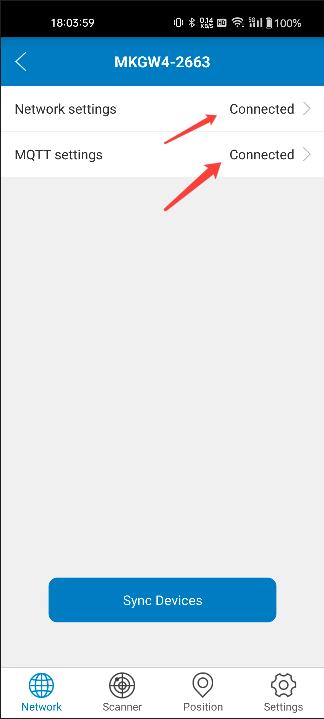
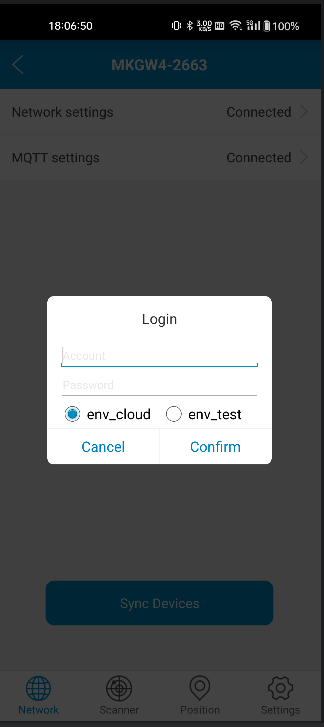
After successful network access, click “Sync Devices”, enter the registered username and password, select “env_cloud”, log in and select the device to be synchronized.
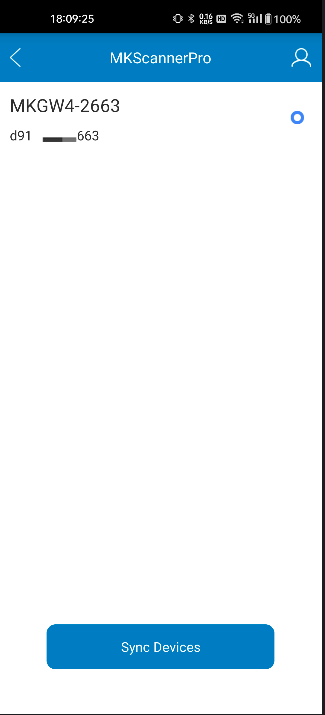
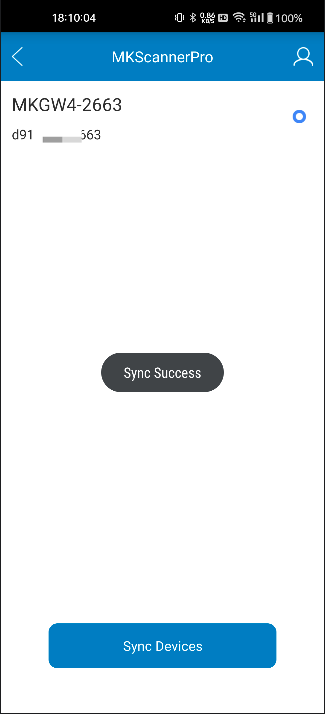
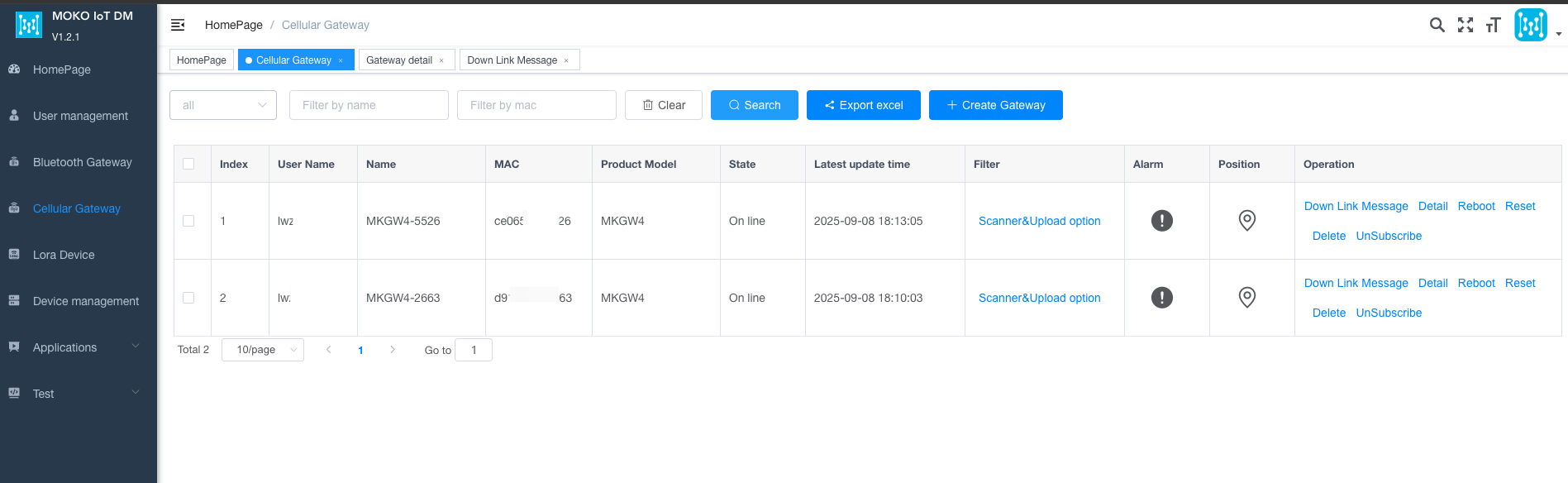
After successful synchronization, click the “Search” button to refresh. You will see that the device has been created successfully. Click the “Subscribe” button, and the platform will start to receive the data upload by the gateway.
Manual creation
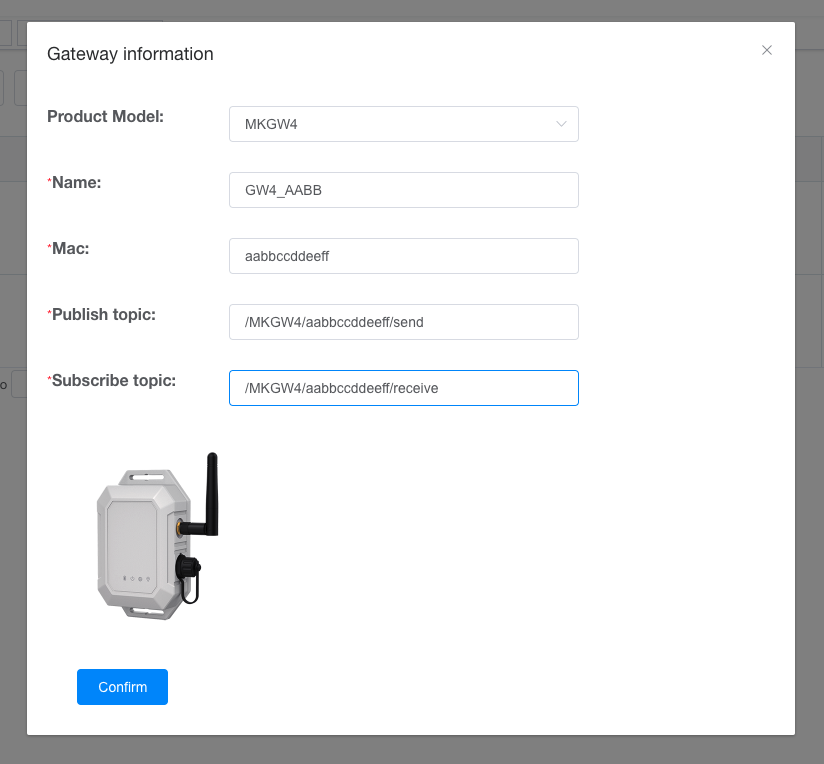
To manually create a device, you need to select the correct device model, fill in the WiFi MAC address (note to use lowercase), and the publish/subscribe subject of the gateway (which should be consistent with the one filled in during the APP configuration).
An example is as follows:
Import via template
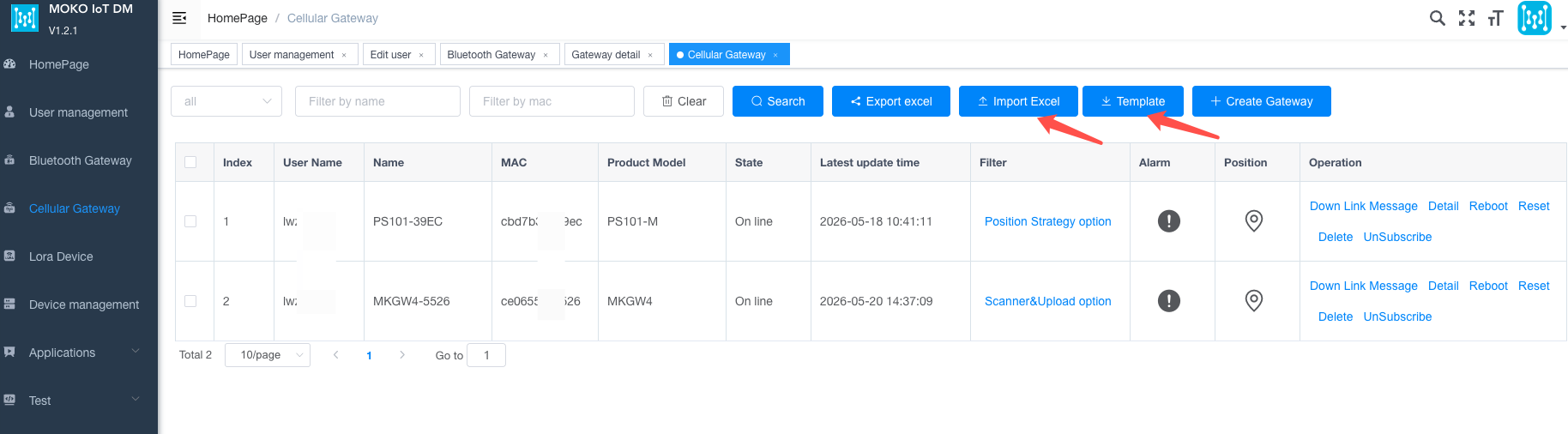
On the list page, click the “Template” button to download the template file for import. Enter the device information and click “Import Excel” to complete the import process.
An example is as follows:

Last editor:admin Update time:2026-06-12 09:12